EdenSpark Update 0.9.0.12
The AI assistant now searches the real docs
The AI assistant in EdenSpark can now look things up in the documentation instead of relying on what its model happens to remember. When you ask it to write or fix Daslang code, it searches the EdenSpark/Daslang reference and the bundled sample projects, then answers with links to the exact source files and lines it read. You get fewer invented APIs and answers that match the editor version you are actually running.
Everything runs on your machine. The search index and a small embedding model ship with the editor, so it works offline and needs no account or API key. Nothing you type leaves your PC. The first lookup takes a second or two while the model loads; after that it is fast.
The docs index is new and we know it is not perfect yet. If the assistant cites something wrong or outdated, please tell us in our community channels so we can fix it for everyone.
Editor tools — extend the editor with Daslang
You can now build your own editor tools in Daslang. Drop a script into an editor/ folder in your project, and it runs inside the editor alongside your game — turning the editor into something you shape for the way your team works.
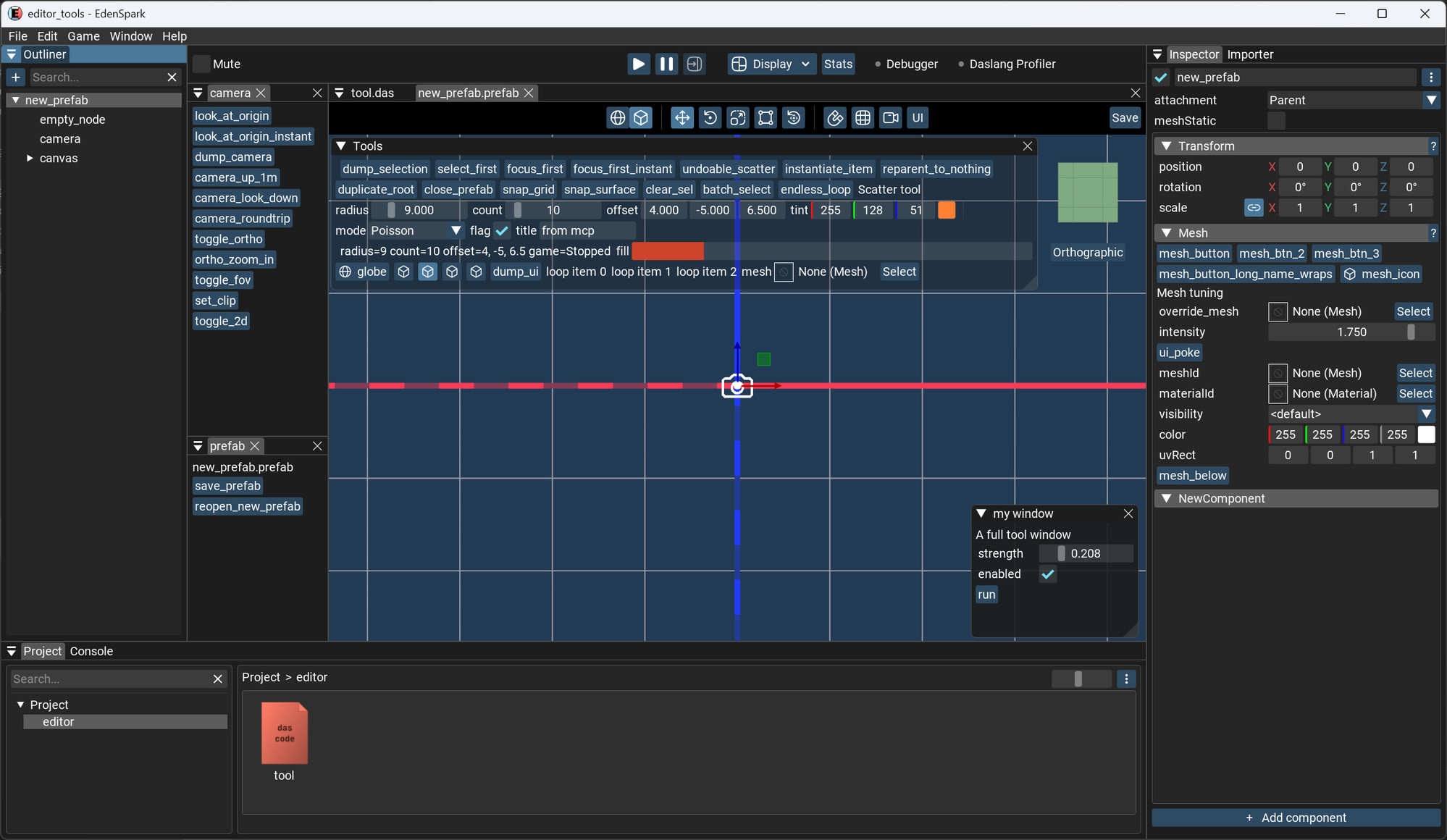
An editor tool can:
- add buttons and menu items to any component's inspector — one click to run whatever logic you write, with your own icons and a highlighted state when it is "on"
- draw custom widgets right inside a component's section — sliders, color pickers, drag fields, dropdowns, resource pickers, progress bars, whatever the tool needs, per selected node
- pop up floating tool windows over the viewport (draggable, resizable, collapsible, and listed in the Window menu) so your controls never eat into the scene view
- drive the editor camera — move it, reorient it, switch perspective/orthographic or 2D mode, or frame the selected node like pressing F
- read and change the selection, and make its own scene edits that plug straight into Undo/Redo — a whole batch of changes can collapse into a single Ctrl+Z
- snap nodes to the grid or drop them onto the surface below
- manage the open prefab — save it, open another one, or close it
- flip the viewport — the gizmo mode (move/rotate/scale/bounds/transform), shaded or wireframe view, and which editor tab is in front
- react to the editor loop and to node changes, and read whether the game is stopped, paused, or playing — and start, pause, restart or step it
The values you tweak in a tool's widgets are remembered between sessions and shared with your team — they are saved next to your project sources (under version control), so a teammate who pulls the project gets the same tool setup. Per-node widgets remember their value for each node.
Tools are also reachable by AI assistants: the editor's built-in MCP server lists every live widget and lets an agent read and set values, press buttons and run component tools — the same way a user would, undo included. Your tool windows stay visible whatever editor tab is in front; only the translucent default Tools overlay lives with the viewport.
Editor scripts live only in the editor — they are never bundled into the shipped game, and a runaway tool that gets stuck is interrupted on its own instead of taking the editor down with it.
In-Editor Profiler
A built-in performance profiler now lives right inside the editor — no external tools needed. Open it from Window ▸ Profiler (or the Open Profiler button on the Statistics overlay) to watch frame timings and render load plotted as scrolling graphs over roughly the last 2,000 frames, so you can spot spikes and trends instead of a single instant's numbers.
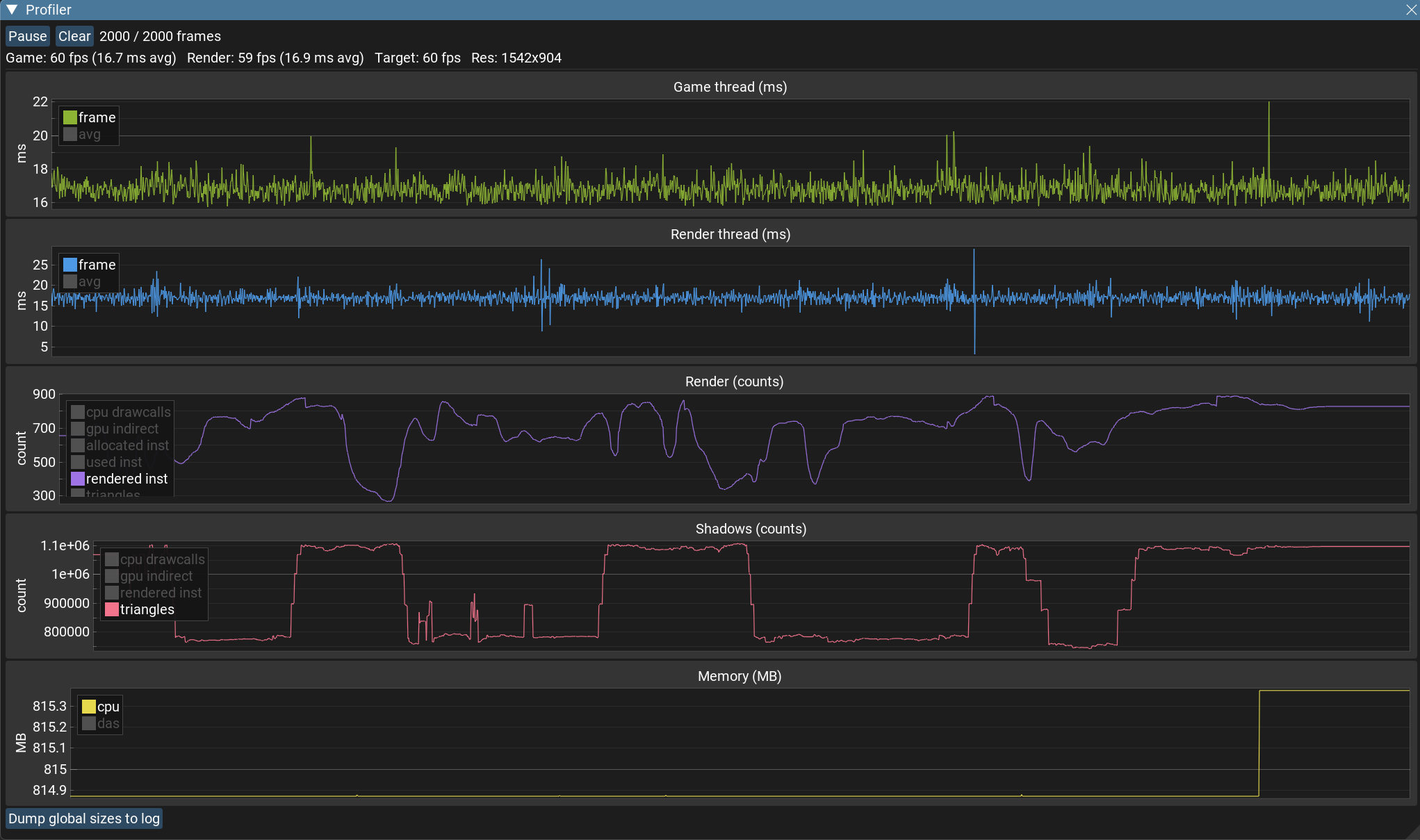
The window stacks five graphs — game thread time, render thread time, render counts (draw calls / instances / triangles), shadow-pass counts, and memory. The two frame-time graphs plot the raw per-frame value with the smoothed average overlaid, so short hitches stay visible. Each graph has a legend you can click to show or hide individual series. Pause to inspect a captured window, or Clear to start fresh.
Built-in JSON serialization
There is now a first-class way to move data in and out of JSON from a game script. Serialize almost any Daslang value — structs, classes, arrays, tables, variants and primitives — to a JSON string, and parse a JSON string straight back into a typed value, with optional field renaming for names that differ from your Daslang fields.
The public json module replaces the older daslib/json / json_boost helpers, which are now blocked in favor of the faster built-in one.
New Mesh Generation API
The async mesh generation API was greatly simplified by removing unnecessary wrappers. See for yourself!
Before:
// generator.das
require engine.serializer.genericstorage
require engine.gengeometry.meshstructures

def create_my_mesh(width : float, height : float, subdivisions : int) : MeshGeometry{
    // your generation
    return <- MeshGeometry(...)
}

[export]
def build(data : string) : MeshGeometry {
    var req <- GenericStorage(data)
    let width = get_or(req, "width", 1.)
    let height = get_or(req, "height", 1.)
    let subdivisions = get_or(req, "subdivisions", 24)
    return <- create_my_mesh(width, height, subdivisions)
}

// main.das
require engine.serializer.generic_storage

[export]
def on_initialize() {
    var req : GenericStorage
    set(req, "width", 2.)
    set(req, "subdivisions", 50)
    let meshId = generate_mesh("%file/generator.das", req)
}
After:
// generator.das
require engine.gen_geometry.mesh_structures

[mesh_generator]
def create_my_mesh(width : float = 1., height : float = 1., subdivisions : int = 24) : MeshGeometry
{
    // your generation
    return <- MeshGeometry(...)
}

// main.das
[export]
def on_initialize() {
    let meshId = generate_mesh("%file/generator.das", (width = 2., subdivisions = 50))
}
See the corresponding documentation article for details.
Note: old code in already published games still works, but it emits a deprecation warning that blocks publishing.
Launcher
You can search the Browse tab to find published games, and manage a project's screenshots directly — delete the ones you don't want, with an immediate undo if you remove the wrong one.
Navigation & Pathfinding
Agents can now find their way around a level. Add a NavMesh component to a node, place Collider geometry on any child node (or NavMesh node itself), and bake a navigation mesh from that geometry — then query it from scripts to move characters, enemies, or anything else along walkable ground.
The NavMesh component carries the agent profile the mesh is baked for — capsule radius and height, max step climb, max slope, and voxel cell size. Press Bake in the inspector to build it from the child colliders, or Clear to remove it.
// Bake at runtime from procedurally placed geometry; the block is called when the bake finishes
navmeshNode?.NavMesh.bakeAsync() @(result : BakeResult) {
    // result: BakeResult.Baked / .Empty / .Failed
}

// Ask for a walkable route between two world positions (on any navmesh)
navmesh_find_path(NavPathQuery(from = character.localPosition, to = destination)) $(waypoints) {
    // waypoints : array<float3> -- follow them in order
}

// or request a path on a specific navmesh
navmeshNode?.NavMesh.findPath(NavPathQuery(from = character.localPosition, to = destination)) $(waypoints) {
    // waypoints : array<float3> -- follow them in order
}
For advanced pathfinding there is NavCorridor, a stateful path follower. It keeps the corridor between the agent and its goal, re-funnels from wherever the agent actually is every frame (so it never wedges on navmesh borders), can chase a moving target without a full replan, and tells you when the navmesh under it was rebaked so you can replan.
You can test navmesh features yourself in the navmesh showcase (samples/showcases/navmesh). Navmesh functionality is still under active development, so you can expect more features like obstacles and links in the nearest updates.
Particle Effects
Now you can create visual effects with the new ParticleSystem component.
The component consists of a powerful set of parameters for creating all kinds of effects: fire, smoke, rain, splashes, magic spells, and much more.
It supports various particle emission shapes and modes, extensive simulation settings, rich color control, integration with scene lighting, and more.
Everything is configurable in the editor, where parameters are grouped into clear categories and edited with purpose-built visual controls.
Post-effect shaders in Daslang
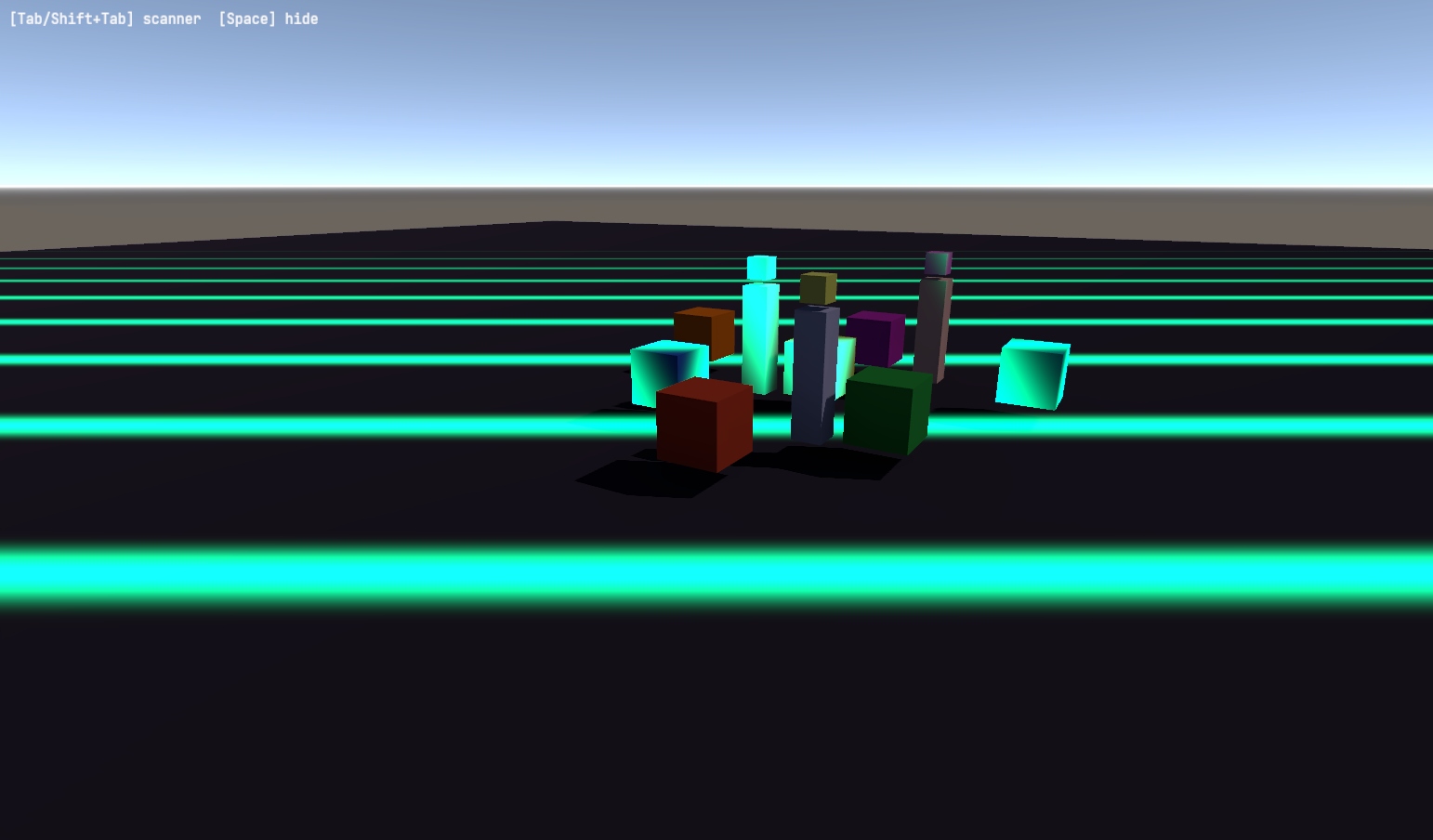
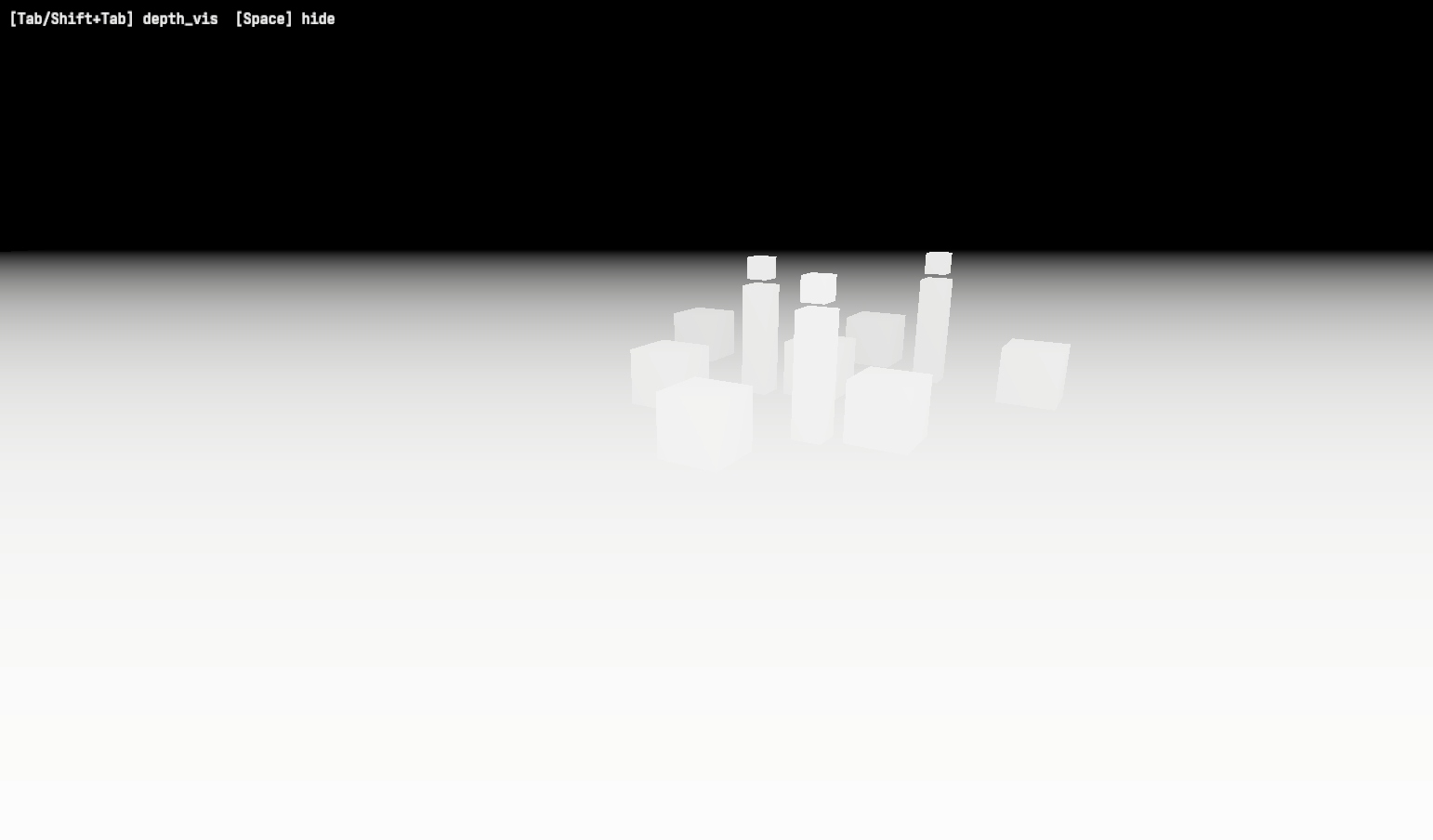
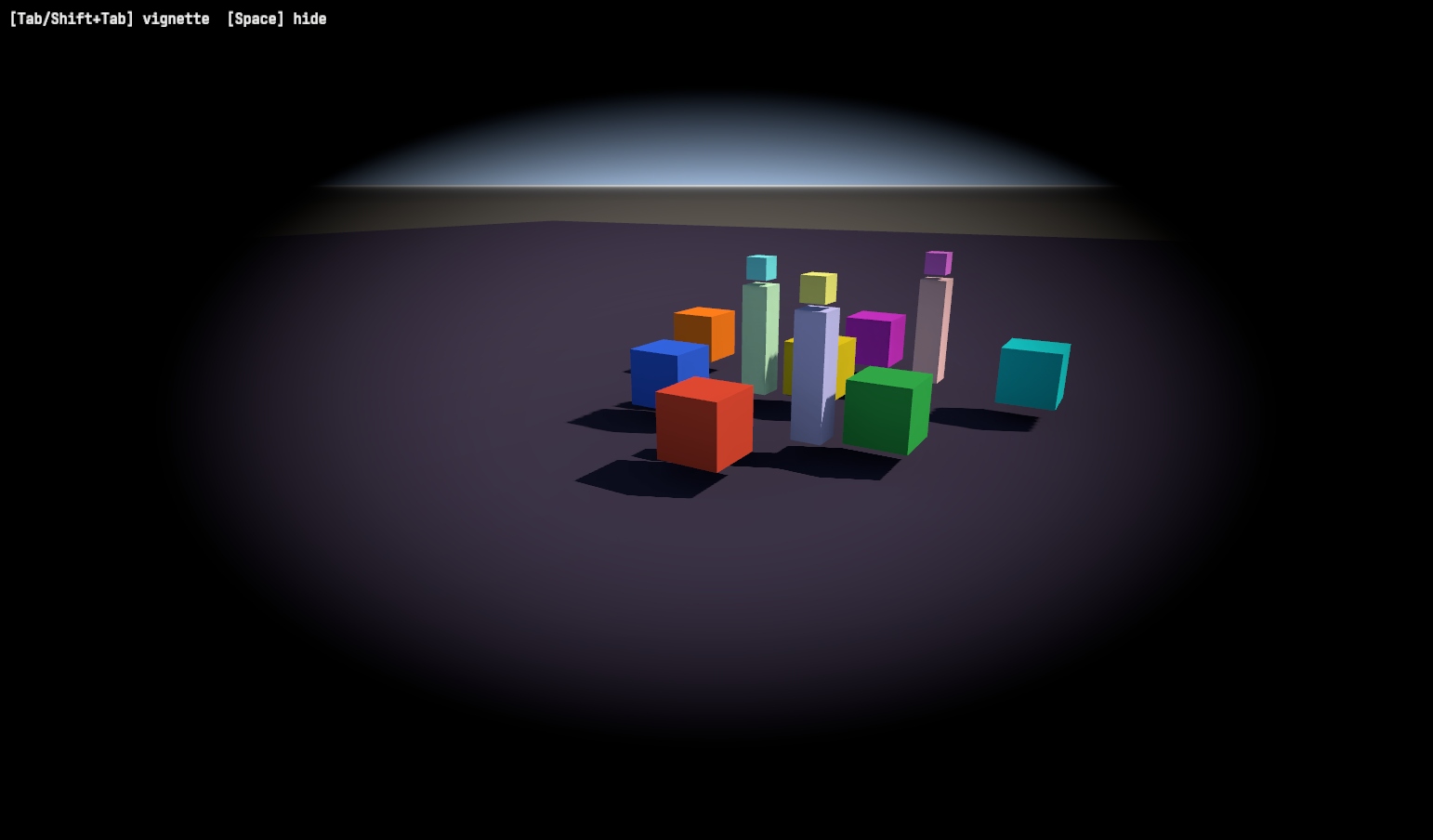
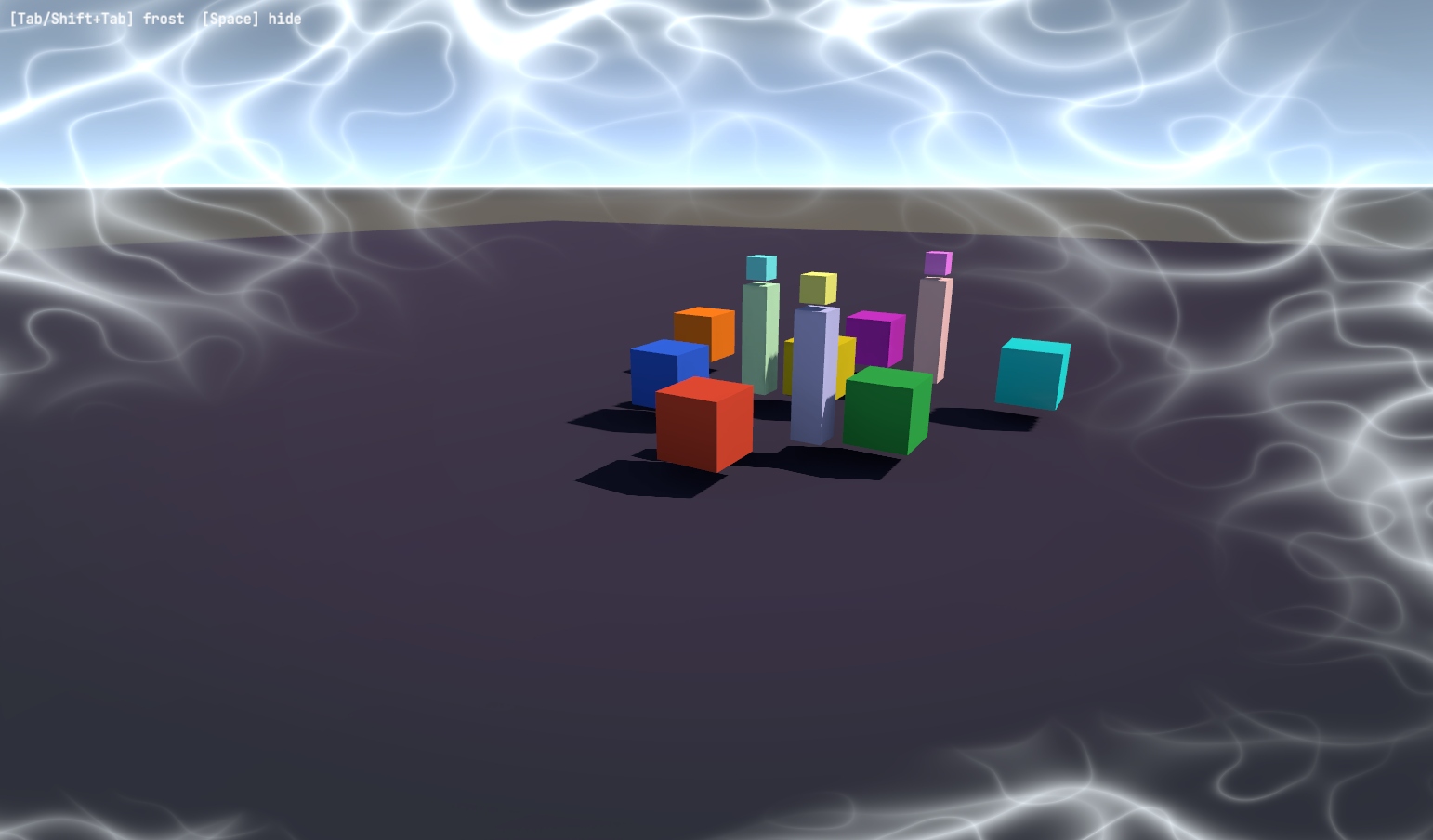
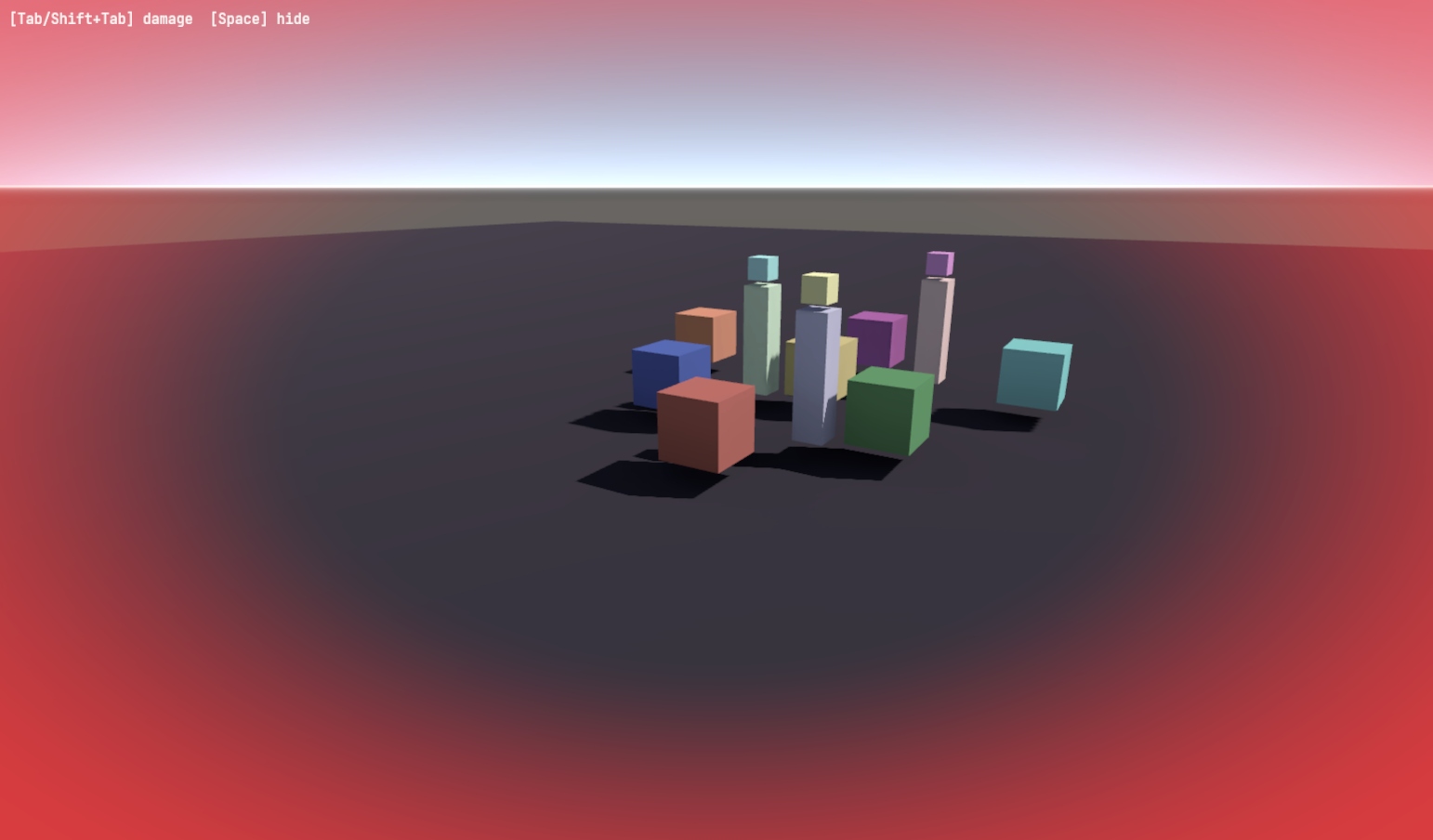
Pixel shaders can now run as full-screen post effects. Write a [pixel_shader] that takes PostEffectInput, read the rendered scene with sample_scene_color and sample_scene_depth, and attach the resulting material to the scene with a PostEffect component.
require engine.render.shader_dsl

var {
    @color vignetteColor = float3(0, 0, 0)
    strength = 1.5
    radius   = 0.6
    softness = 0.4
}

[pixel_shader]
def vignette(inp : PostEffectInput) {
    let uv = inp.screenPos
    let col = sample_scene_color(uv)

    // Distance from center [0,1] -> vignette mask
    let d = length(uv - float2(0.5, 0.5)) * strength
    let mask = smooth_step(radius - softness, radius, d)

    return PostEffectOutput(out_color = lerp(col, vignetteColor, mask))
}
A new post_effect showcase ships with 12 ready-to-use effects: scanner, depth visualization, depth outline, vignette, frost, damage, heal, night vision, radial blur, sharpen, heat haze, and helmet.
Sprite Editor
Textures can now carry sprites — named sub-rectangles cut from an atlas that you can use directly in your game. Select any imported texture and click Edit Sprites… in the Importer to open the new Sprite Editor.
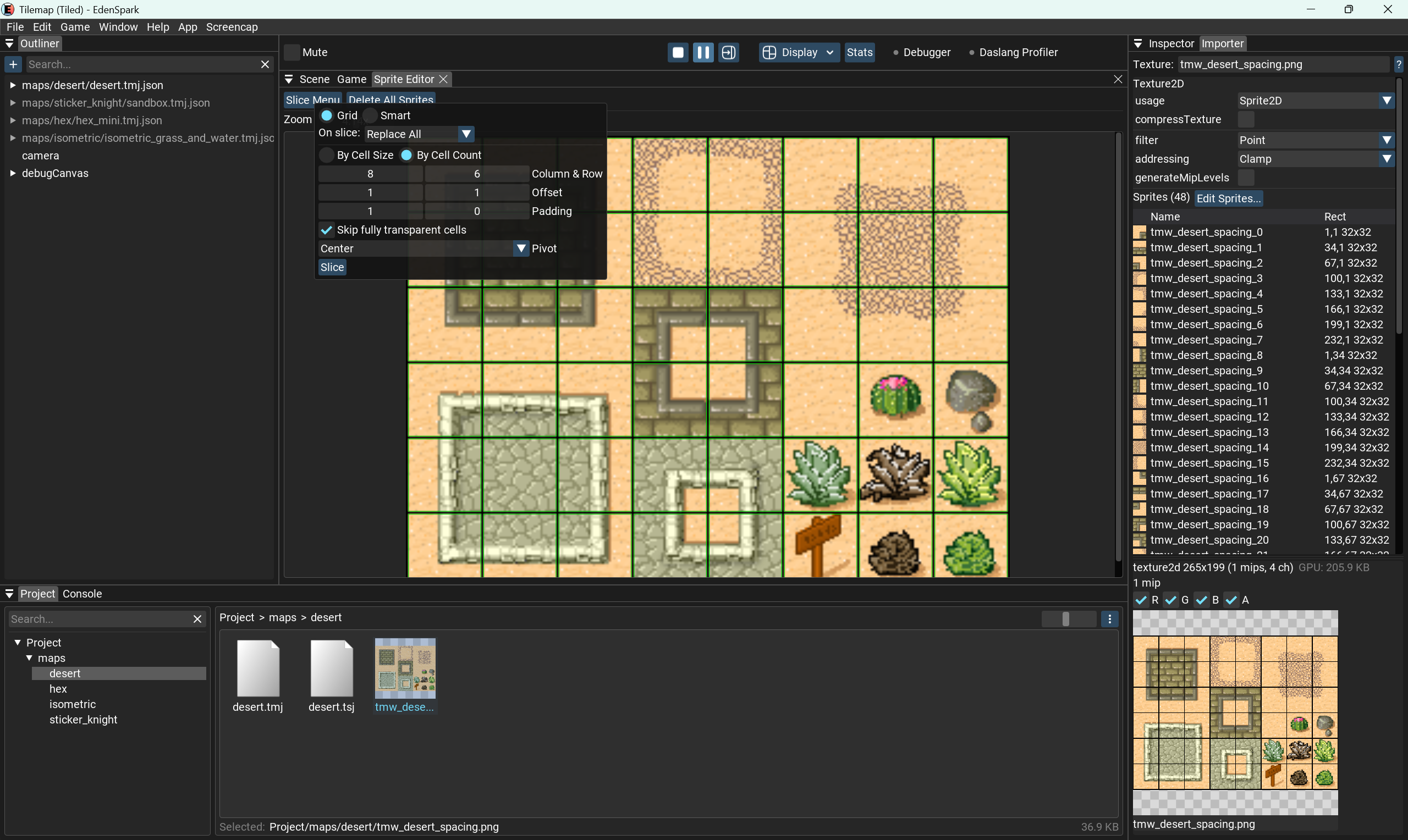
Two slicing modes are available:
- Grid — slice by cell size or by column & row count, with offset, padding, a pivot preset, and an option to skip fully transparent cells. Ideal for animation sheets.
- Smart — automatic slicing that finds sprites by transparency, with a tunable alpha threshold and minimum island size. Ideal for irregular atlases.
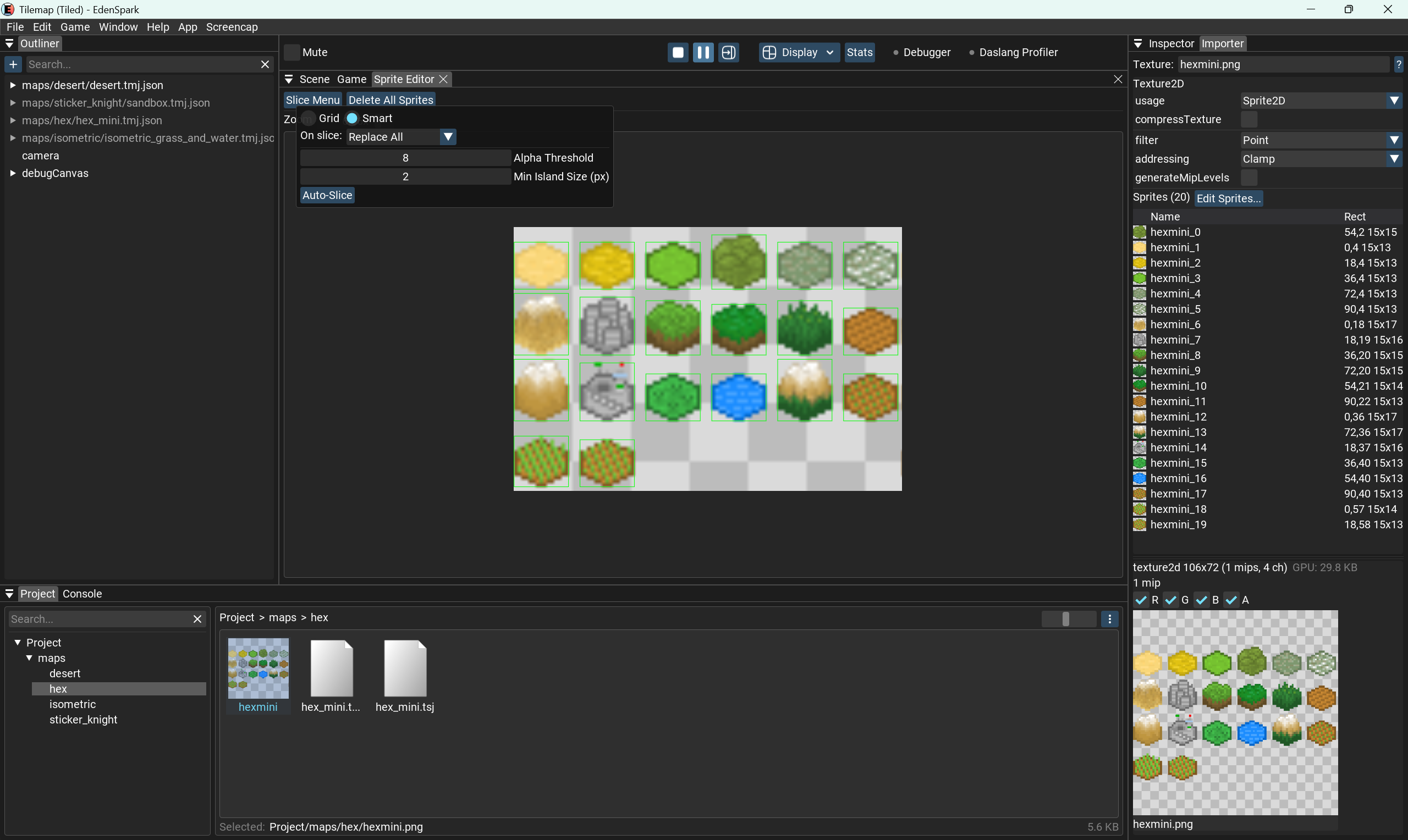
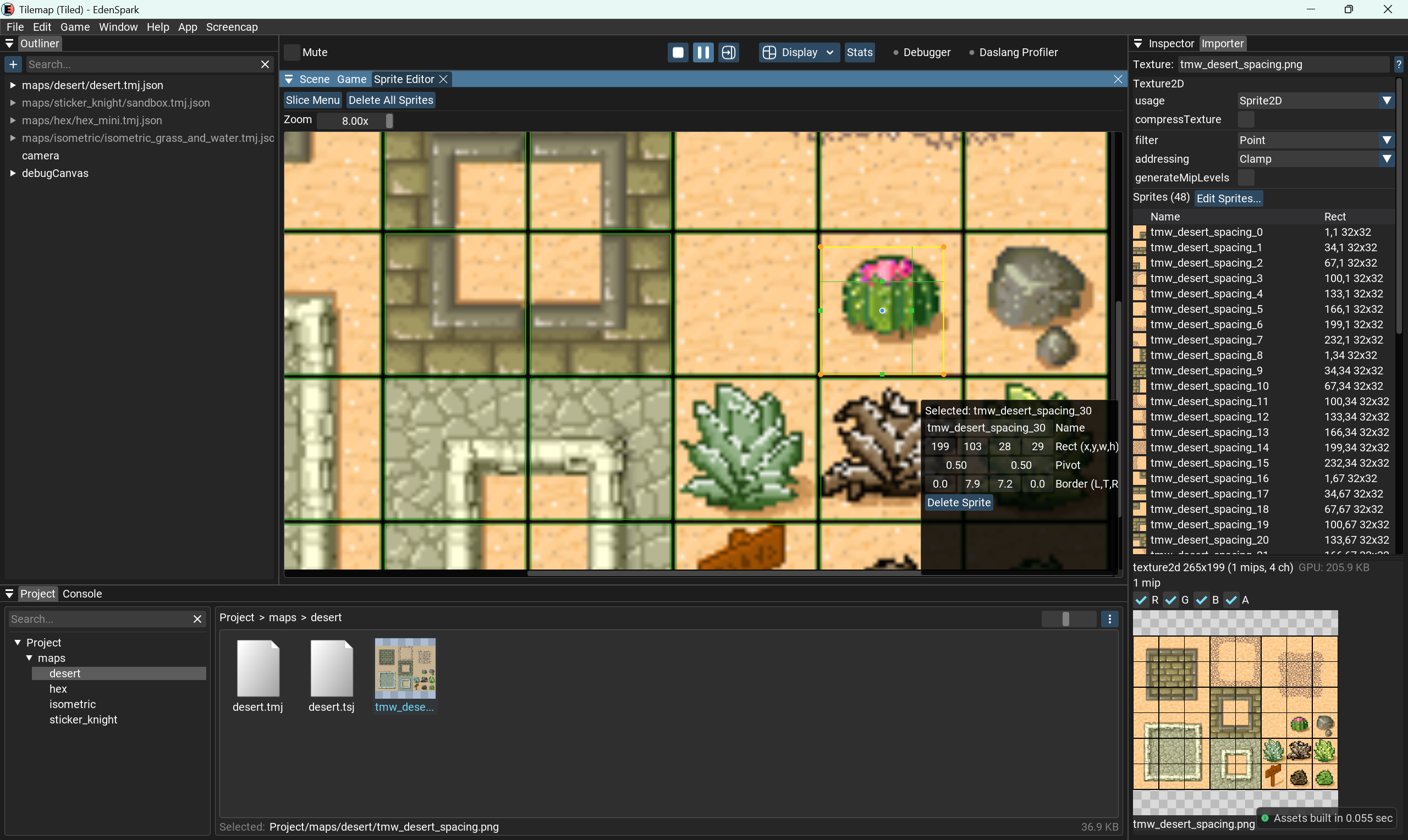
Every sprite can be edited individually — rename it, adjust its rect, pivot and borders, or delete it:
Smarter texture import
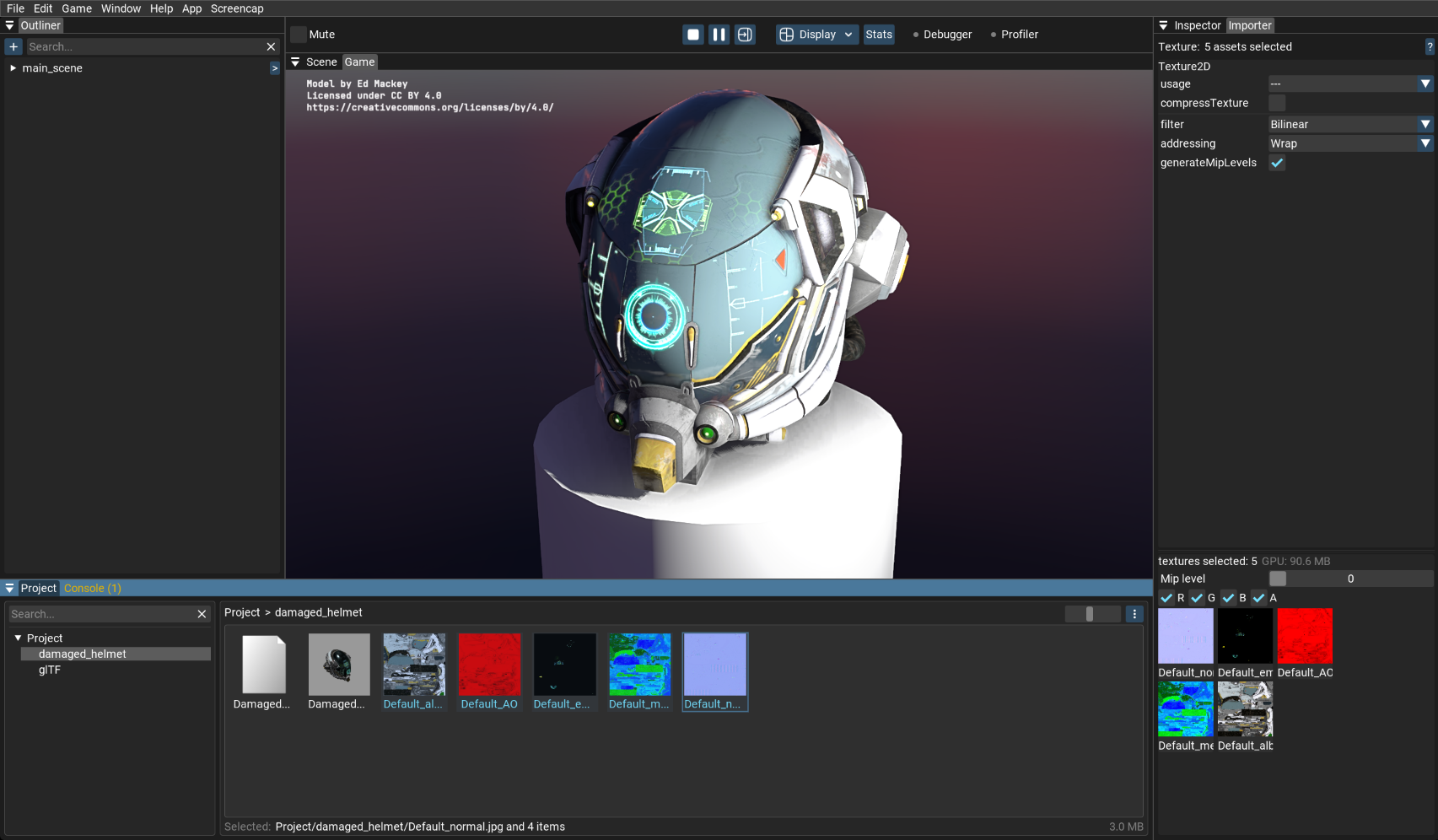
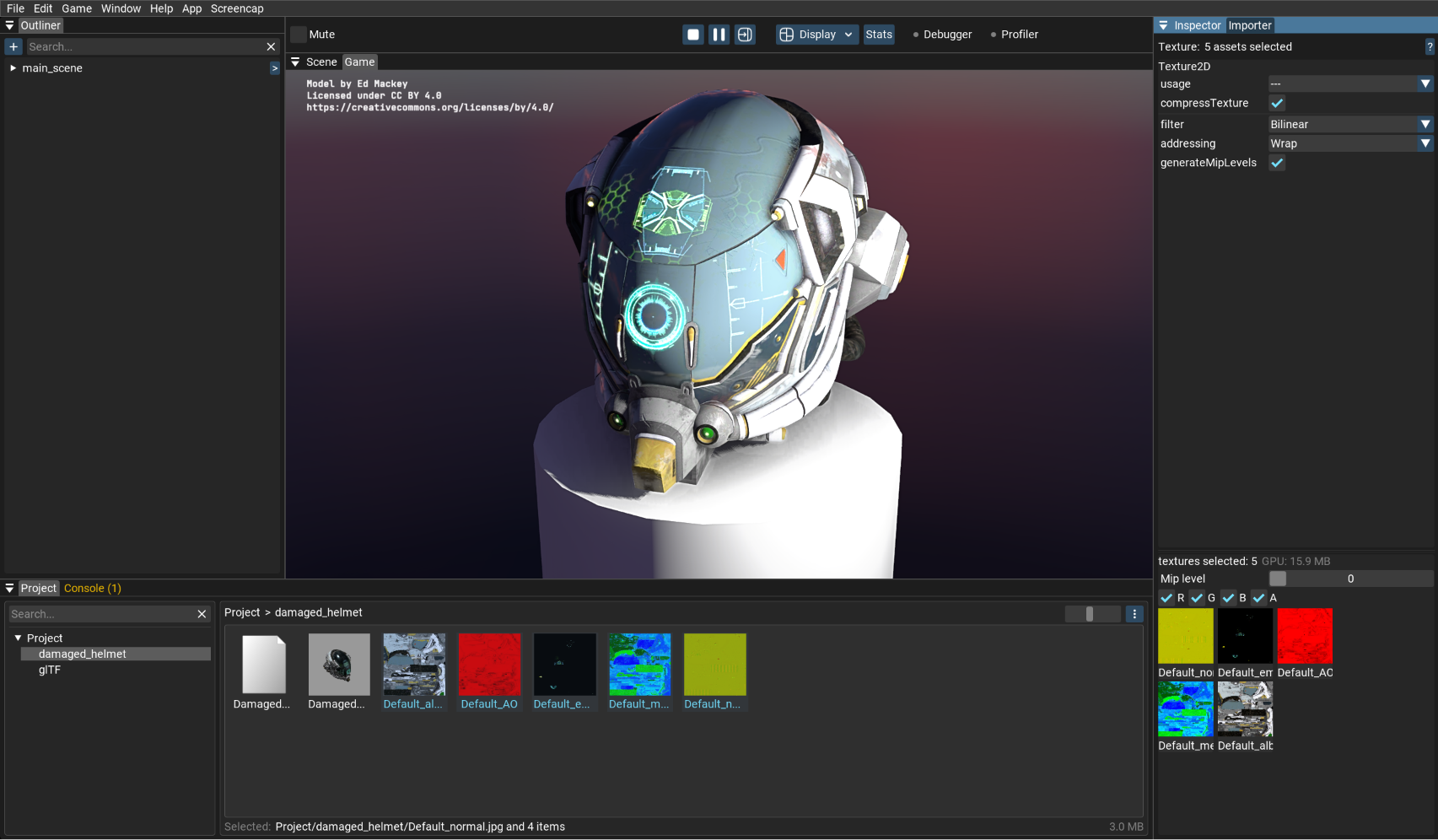
Texture import has been reworked around a single usage setting — pick Color, NormalMap, LinearGrayscale or LinearRGBA and the importer picks the right pixel format, color space and channel layout for you. Usage is auto-detected for common cases (normal maps, grayscale masks), so most textures import correctly without touching anything.
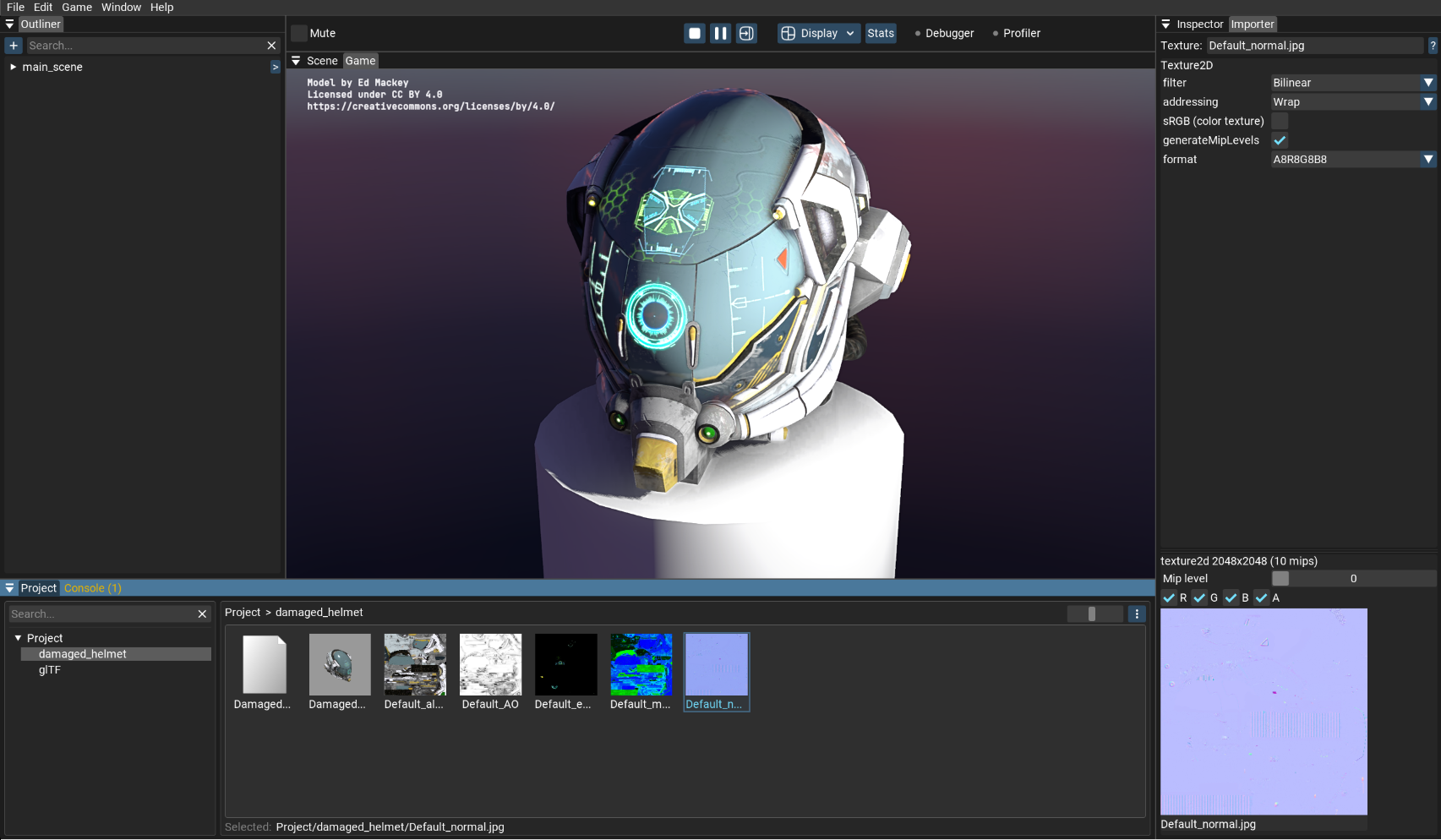
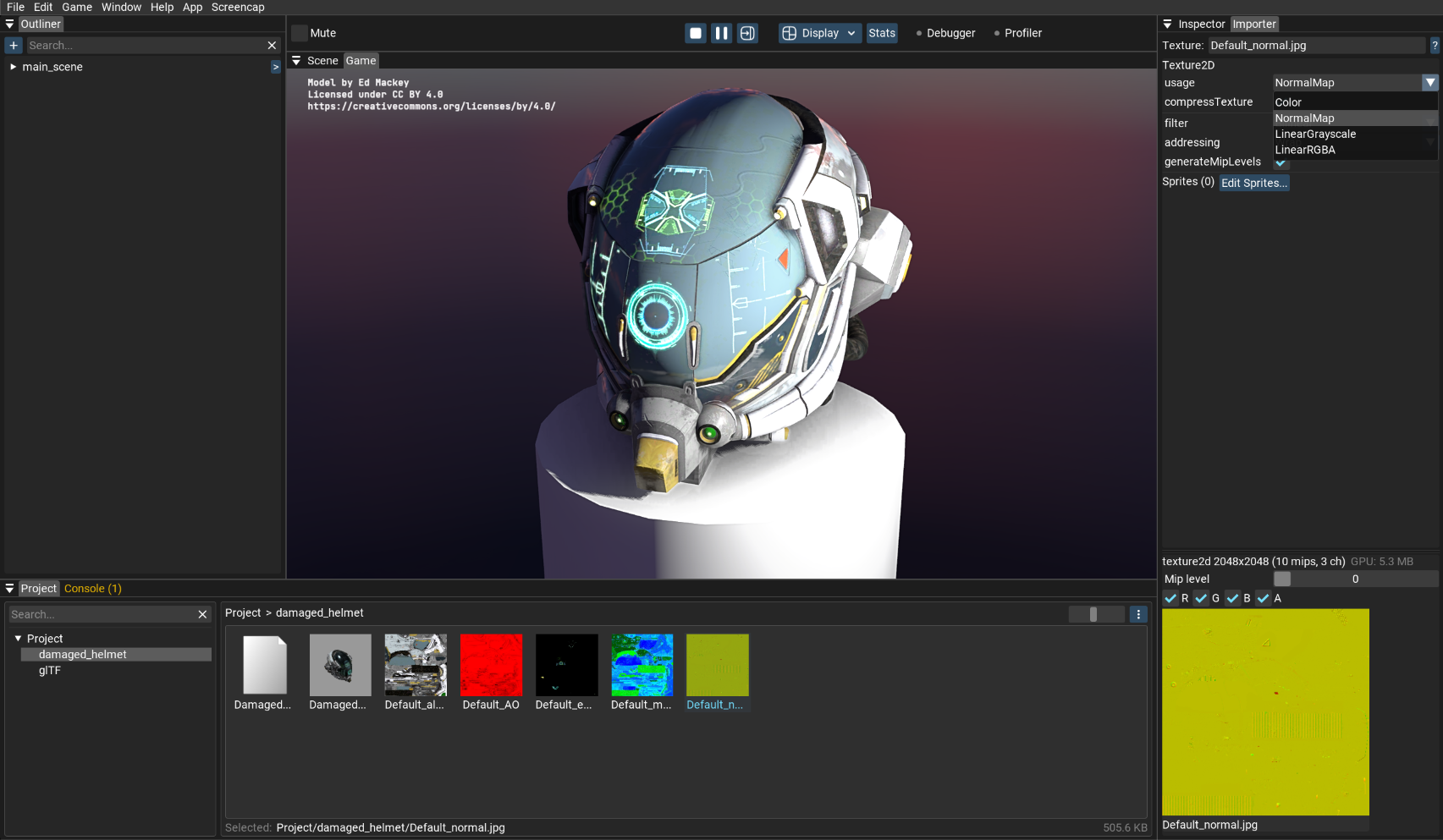
Compression is now a single compressTexture checkbox, and the preview panel shows the texture's actual GPU memory cost — so the effect is visible immediately:
Tiled Map Sample
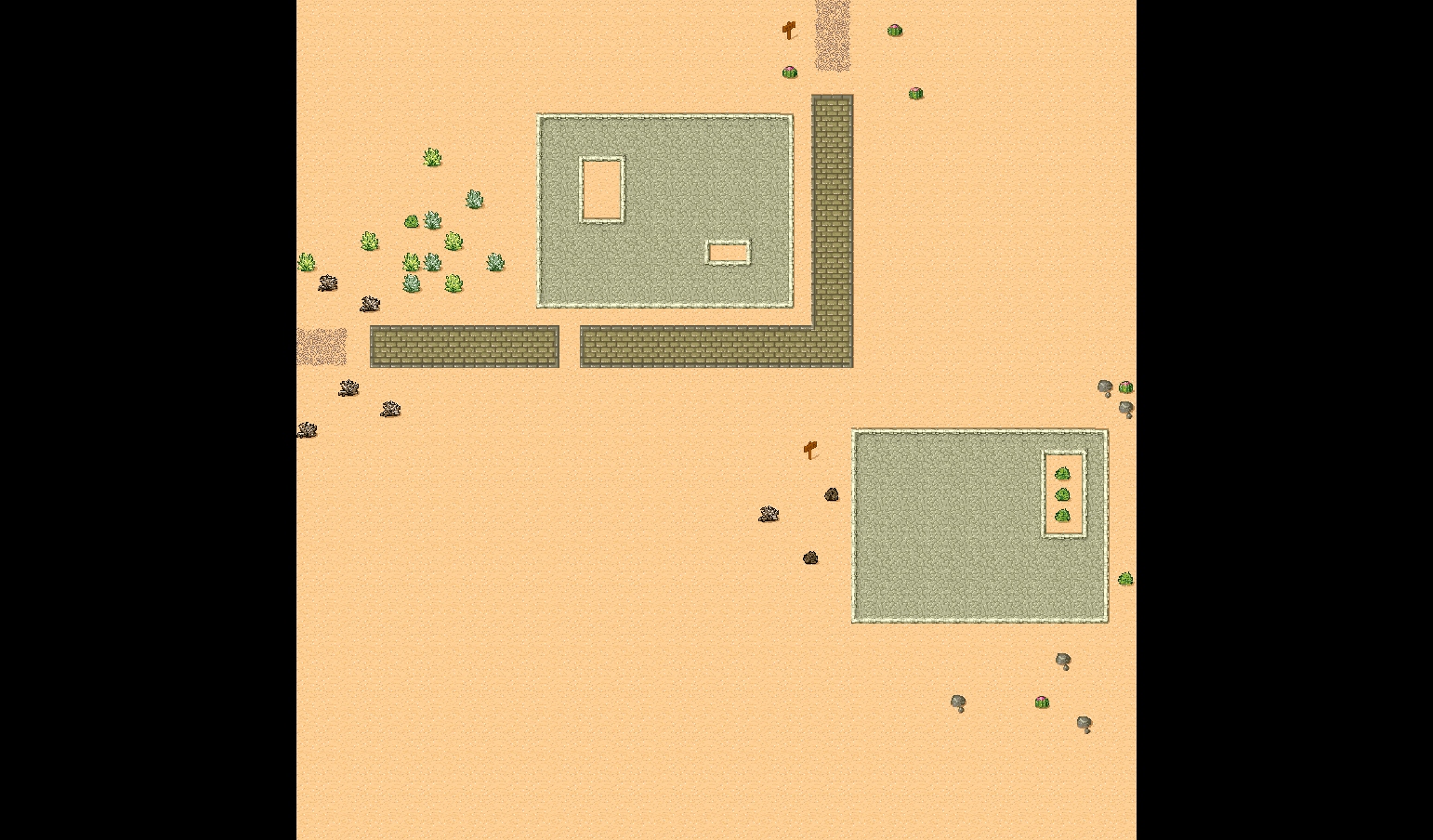
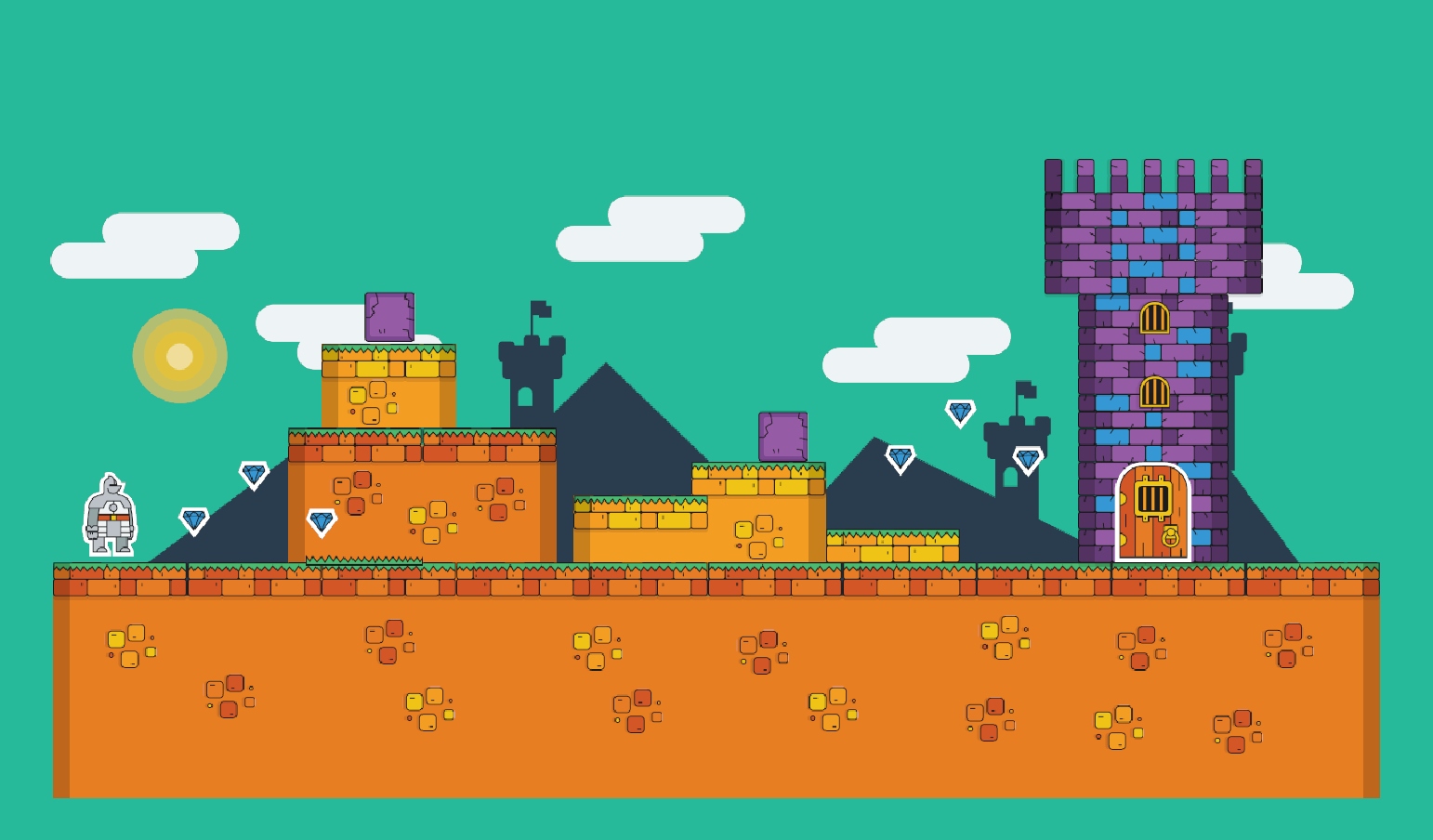
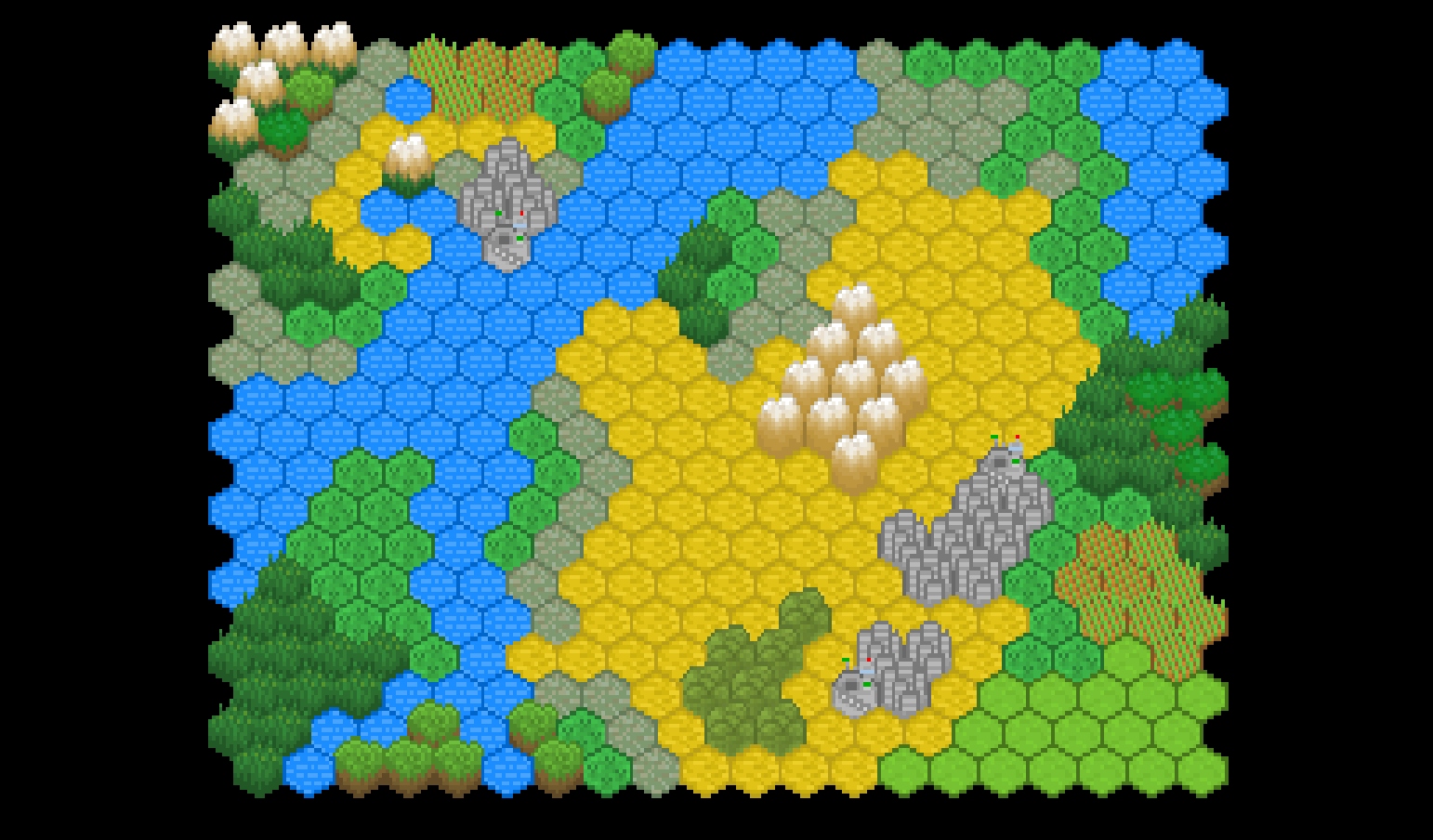
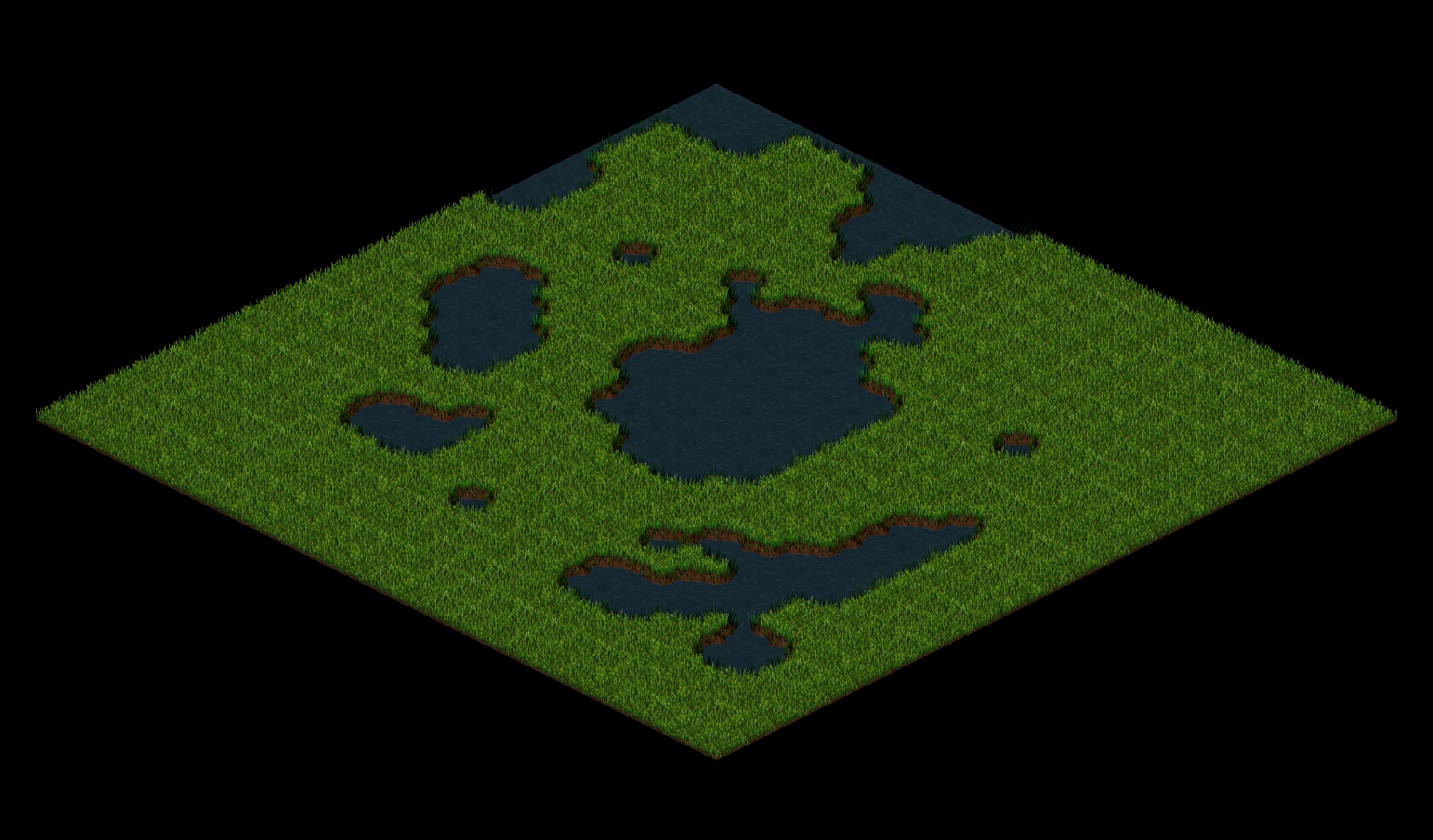
A new sample (samples/new/tilemap) shows how to load and render maps made in the Tiled editor, exported as JSON. This isn't native Tiled import yet, but the converter that ships with the sample already gets very close: orthogonal, hexagonal, and isometric map orientations, atlas (margin/spacing-aware) and image-collection tilesets, tile flips, and parallax layers are all supported.
Vector font rendering
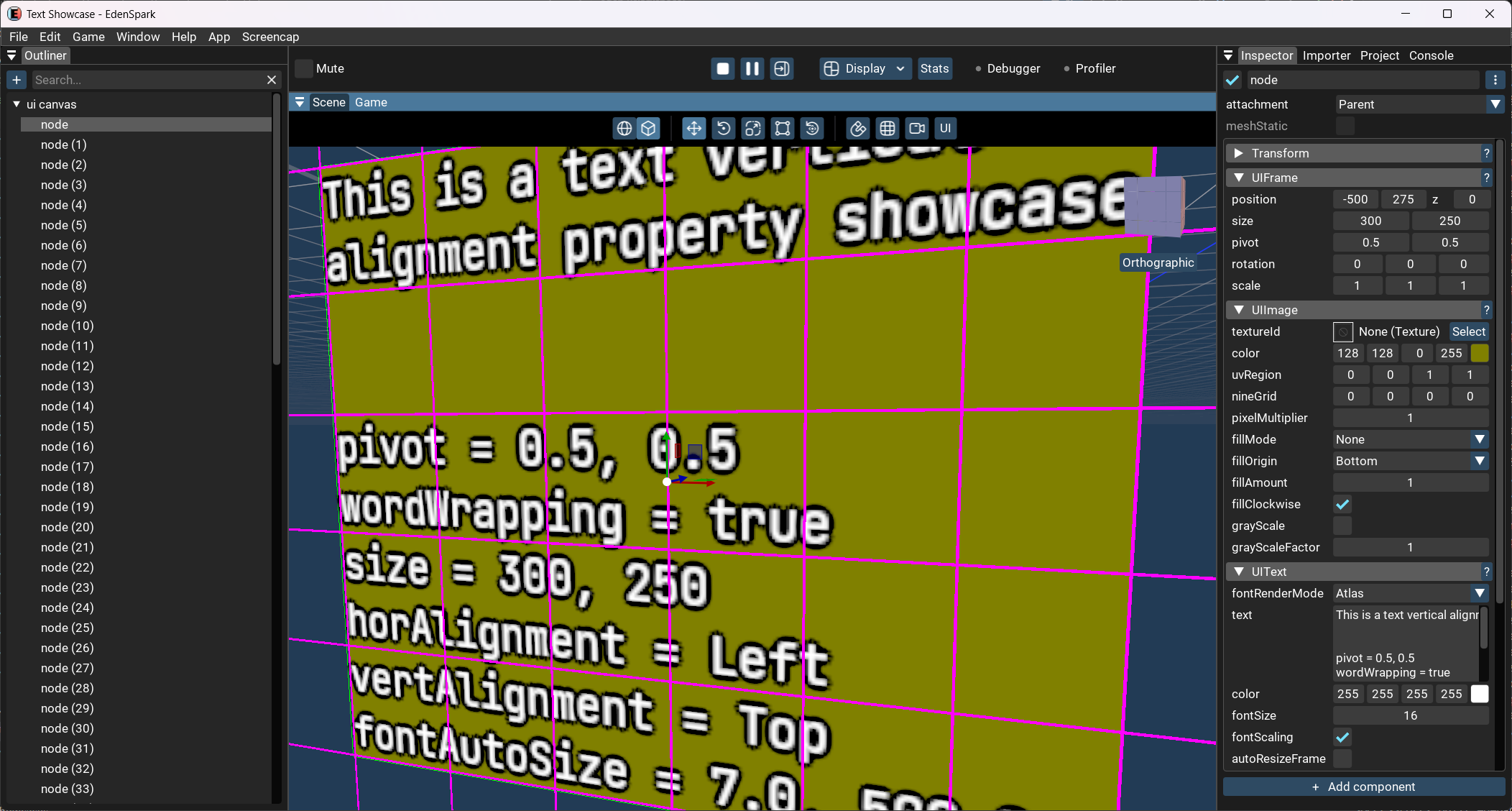
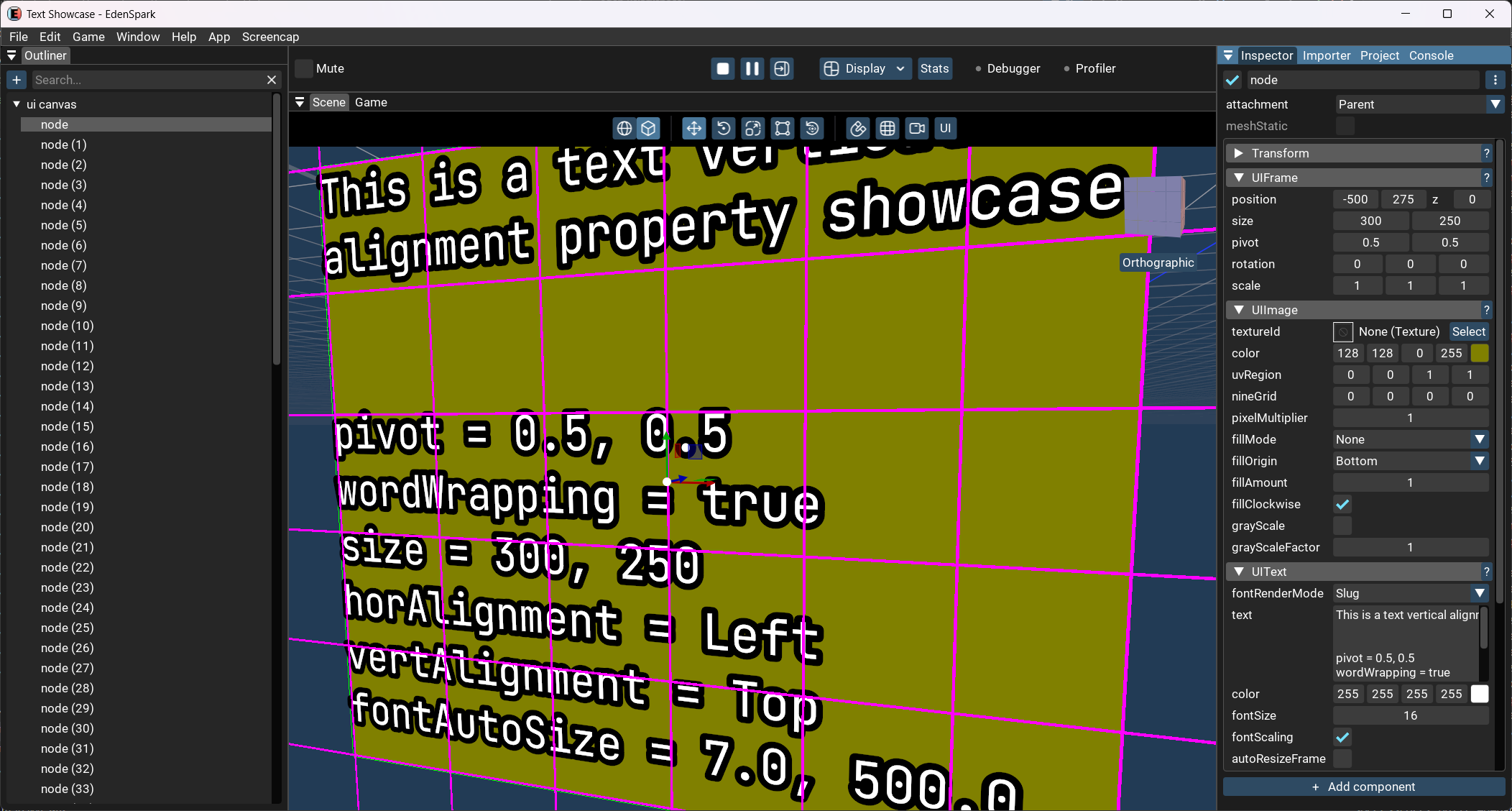
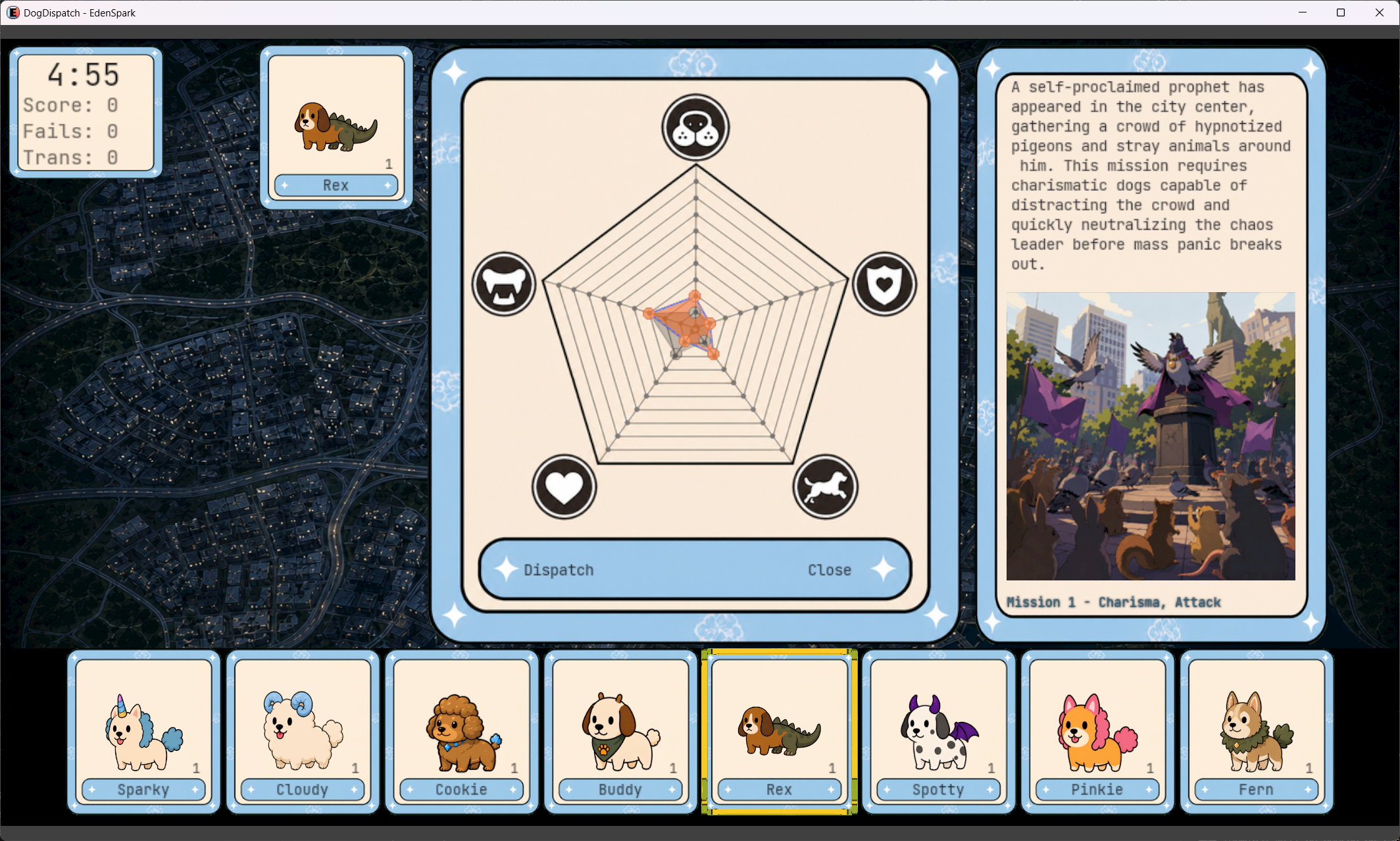
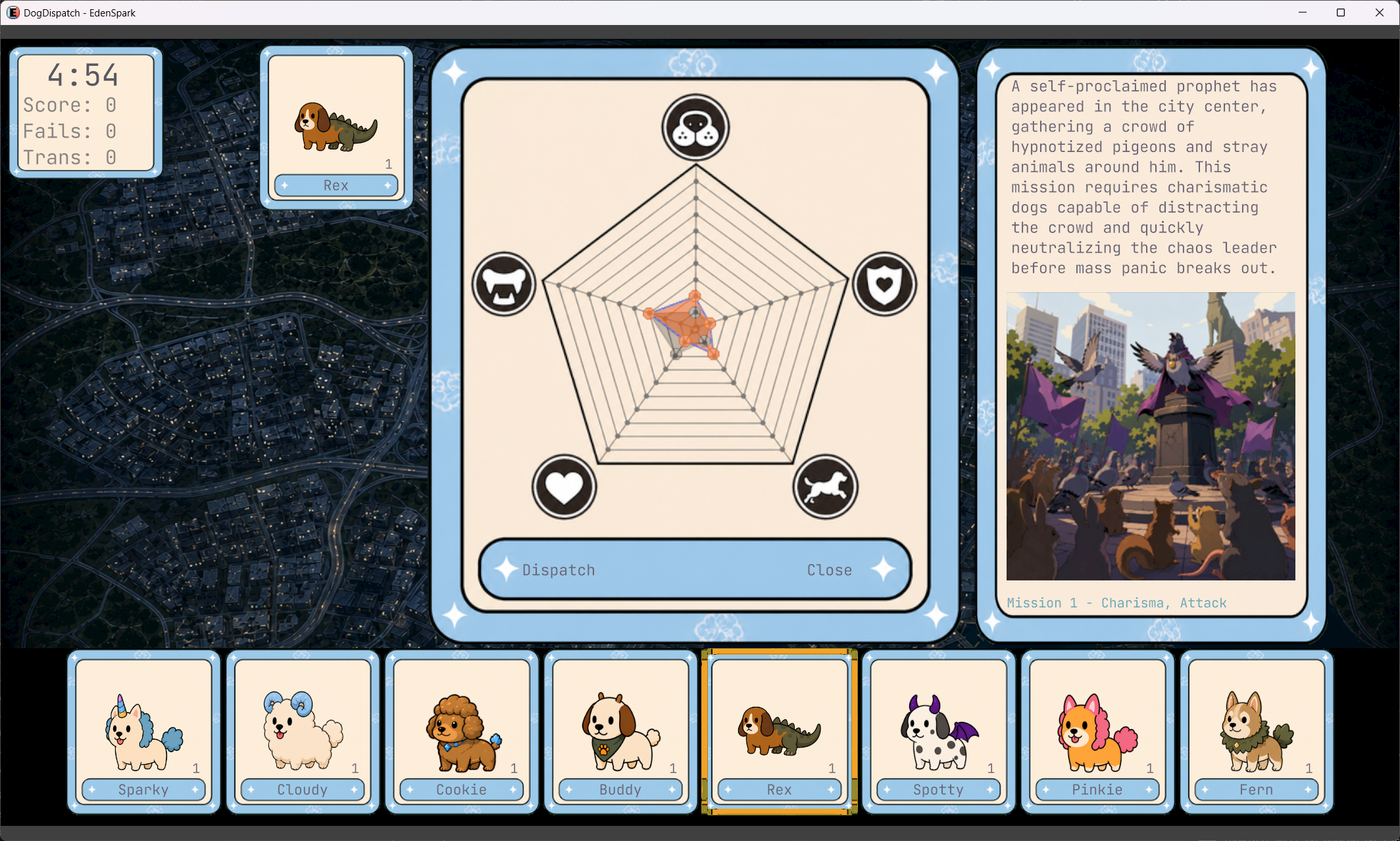
Fonts are now rendered directly from glyph outlines on the GPU, instead of from a pre-baked bitmap font atlas. The result stays razor-sharp at any size — no blurring or pixelation when text is scaled up, animated, placed in the 3D world, or viewed up close.
Note: TextEffect.Glow is not supported in new vector font rendering (it renders without the effect). Use Outline or Shadow to emulate glowing effect
Vehicle Physics
Create vehicles of any kind — cars, trucks, anything on wheels — with realistic, physics-based handling. Engine, transmission, and wheel parameters are fully configurable. Vehicle physics uses the Jolt physics engine's built-in vehicle system.
📐 API Changes
- Mesh generation API was simplified and now does not require build+GenericStorage wrapper (backward compatibility is kept)
✨ Added
- The AI assistant searches the bundled EdenSpark/Daslang docs and sample projects and cites exact source files and lines; the index and embedding model run fully offline, no account or API key needed
- Rename nodes, files and assets directly in the Inspector and Importer windows — select an item, start editing, press Enter to save, or Escape to cancel
- In-editor Profiler window — scrolling graphs of game/render frame time, render and shadow-pass counts, and memory over roughly the last 2,000 frames, opened from Window ▸ Profiler
- Open Profiler button on the Statistics overlay
- Gamepad rumble effects — add tactile feedback to your game with controller vibration. Use start_rumble() to trigger vibration with separate control over low-frequency (heavy) and high-frequency (light) motors, and set a duration in seconds to let it automatically stop. Call stop_rumble() to cut it off immediately. Rumble automatically pauses when the game pauses
- Mouse support in trigger actions — combine mouse buttons together with joystick triggers for flexible control schemes
- Raw input state queries — check keyboard, mouse, and gamepad input state with get_raw_active_state() (currently held of any input type), get_raw_just_pressed_state() (start of button press), and get_raw_just_released_state() (end of button press)
- Quick press detection — new is_any_* functions let you detect is any keyboard, mouse, or gamepad input has activity without querying the full state
- Post-effect pixel shaders: PostEffectInput / PostEffectOutput, with sample_scene_color and sample_scene_depth for reading the rendered scene
- PostEffect component — attach a post-effect material to the scene from code or the editor
- post_effect showcase with 12 example effects
- Comparison nodes, select, and component-wise lerp
- Camera transform node
- mod operator
- Helper functions in pixel shaders: write regular def functions inside a .shader file and call them from your shader code, the compiler inlines them automatically. [pixel_shader] is only needed on the entry point
- A large new library of pixel-shader examples, each with a ready-to-use .material:
- Post-processing showcase: night vision, radial blur, sharpen, frost, heal, damage, heat haze, helmet overlay, depth outline
- 2D shaders: Mandelbrot, CRT, bulge, dithering, emboss, kaleidoscope, voronoi, gradient map, bloom, and more
- 3D shaders: scene refraction, depth fog
- Sprite Editor: slice texture atlases into named sprites, with grid and smart (transparency-based) slicing
- Per-sprite editing: name, rect, pivot, border
- Sprite list with rects shown right in the texture Importer
- usage import setting (Color / NormalMap / LinearGrayscale / LinearRGBA) with auto-detection, replacing manual format and sRGB flags
- One-click texture compression via the compressTexture setting
- Texture preview shows the real GPU size and channel count of the imported texture
- Tilemap sample (samples/new/tilemap): converts and spawns Tiled JSON maps (.tmj/.tsj) as sprite nodes - orthogonal, hexagonal, and isometric orientations, atlas and image-collection tilesets, tile flips, parallax layers, and typed object properties
- Dedicated Gamepads tab — all gamepad configuration is now in one organized place, separate from Action sets settings
- Interactive gamepad deadzone visualization and controls — adjust analog stick deadzones with visual feedback showing deadzone rings and full range
- Gamepad remapping — if you have multiple controllers connected, easily swap which gamepad controls which player slot
- A/B and X/Y button swap toggle per gamepad — toggle this per gamepad to flip A↔B and X↔Y for left-handed controllers or different button layouts
- Persistent control settings — all your input bindings and customizations are saved between sessions, so you don't have to reconfigure them every time you restart. Use "Reset All" anytime to go back to the engine's defaults
- Added the VehicleController component, which lets a physics body behave like a car with wheels.
- Added a sample demonstrating VehicleController capabilities
- Search in the Browse tab for finding published games
- Delete screenshots in the Screenshots selector, with an immediate undo to restore one removed by mistake
- A button to copy a post URL to the clipboard without opening it in a browser
- Comprehensive editor documentation covering the toolbar, viewport, outliner, inspector, project panel, asset importer, console, internal code editor, main menu, preferences, notifications, and drag & drop
- Updated documentation for navigation, resources, and user shaders
- HDStaticShadows component for tuning static shadows in HD Renderer
- ParticleSystem component for creating visual effects for your games
- Removed _ prefixes from number keys selector in user menu input remapping
- Removed confirmation popups from "Exit" and "Restart" buttons
- NavMesh component — set navigation mesh profile and bake it using this component from the Collider geometry under its node. Bake in-editor or using the code
- Pathfinding and navmesh queries, available both as NavMesh component methods and as free functions on the current scene
- NavCorridor — stateful route following for advanced pathfinding
- navmesh showcase — a click-to-move character pathfinding demo driven by NavCorridor; press C at runtime to compare it against a naive waypoint follower
🔧 Improved
- Working with AI coding assistants keeps getting better — the built-in guidance and project instructions that agents read have been refined and expanded, so an assistant follows your project's conventions more reliably out of the box
- Assets are now guaranteed to be fully loaded before the editor or the running game touches them — no more missing meshes or one-frame glitches after a reload
- Heavy meshes prepare their data without blocking other loads, and project builds put much less pressure on the file system
- Model import reports validation problems (e.g. skeleton joint issues) with clear error messages instead of silently producing a broken asset
- Audio keeps improving across the board, including 3D positional sound — more capable and smoother than before
- Hold Shift while dragging a corner of the Bounds gizmo to resize proportionally, keeping the original aspect ratio — works for UI elements and 3D boxes
- Edits to model and material import settings now support undo/redo, just like any other change in the editor
- The project panel shows file and folder sizes for selected items
- When a texture or asset fails to load, the log now tells you why (missing file, empty file, or the real decoder error) instead of a generic message; SVG decoding is only attempted for files that actually look like SVG, so a genuine image error is no longer hidden behind a misleading SVG one
- Stack traces now stand out visually with their own color, making them clearly separated from the main error text
- Improved resource picker — shows "No resources found" when search matches nothing, and offers a "New resource" tile to generate textures with AI
- Prefab windows can now close via the cross button in the tabbar
- The toolbar profiling indicator is now labelled Daslang Profiler, to distinguish the in-engine per-function instrumentation from the built-in Profiler window and the external daProfiler application
- Compiled shaders use fewer GPU registers and sampler slots, produce fewer GPU instructions overall (MAD/lerp fusion, swizzle dropping, boolean folding, scalar packing), and CPU-side evaluation is faster
- Clearer shader compilation errors and disassembly output
- Using a shader with the wrong usage type is now reported as a validation error instead of failing silently
- Texture preview in the Sprite Editor keeps the image aspect ratio
- Strudel improved, stabilized and expanded — more effects and synths, plus fire-and-forget one-shot stings for event-triggered music and SFX
- Texture import is more robust: clearer error messages and an updated metafile format (existing projects keep working)
- Error messages' displaying is clearer now — when errors occur, they appear in a dedicated area with a "Press Restart to continue" hint so you immediately know what went wrong and what to do
- AI agents can now work with game time (slow down, speed up or freeze it) and with prefabs
🐛 Fixed
- Rare crashes and hangs caused by races in parallel asset loading and file operations
- Assets referencing other assets (recursive loading) no longer break
- Files written into project folders appear atomically — the build system can no longer pick up a half-written file
- The on-screen FPS overlay color no longer flickers when the frame rate sits right on a quality threshold
- The editor now survives a GPU device reset (e.g. driver update or crash recovery) instead of going down with it
- Meshes with castShadowsOnlyForStatic cast shadows again
- The Animator no longer crashes when an animation mask references a mismatched skeleton
- Fixed a name collision between fields of built-in components
- Removed the "material was hot-reloaded" log spam on every launch
- Folder drag-and-drop receiver now covers the entire folder area, not just the header
- Fixed a bug where adding a RigidBody to CharacterController made objects touching the character jitter unpredictably.
- Cubemaps and texture2d arrays can now be previewed and edited in the editor correctly
- Textures created from code no longer get an incorrect sRGB mode
- Fixed a bug that prevented setting the default prefab if no prefab was opened for editing
EdenSpark Game Jam #2: The Team's Commentary
Direct feedback from the developers on every submitted entry: what stood out, what could be improved, and where to take each project next
EdenSpark Game Jam #3 Theme — "Classical Elements"
We're launching the third EdenSpark jam! Reminder: within the jam program with a total prize pool of $250,000, $5,000 is awarded for each jam.